
Sony Bluetooth Headphones Pairing: Quick, Easy, and Reliable Guide

How to Pair Sony Bluetooth Headphones: Step-by-Step Guide
Pair Sony Bluetooth headphones easily with your smartphone or computer using this simple guide. Enjoy crystal-clear sound without any hassle, following step-by-step instructions that make pairing stress-free.
If you’re struggling to connect your Sony Bluetooth headphones, you’re not alone. Pairing should be simple, but it can sometimes feel confusing. This guide gives you easy-to-follow instructions so you can enjoy wireless audio quickly. Check out our guide on troubleshooting Bluetooth devices
Credit: www.sietesetenta.com.ar
Preparing to Pair Sony Bluetooth Headphones
Preparing your Sony Bluetooth headphones is the first step to enjoying clear sound without wires. Proper preparation ensures a smooth pairing process. Follow simple steps to get your headphones ready fast.
Charge Your Device
Make sure your headphones have enough battery. Low power can stop pairing or cause connection drops. Connect the headphones to a charger using the original cable. Charge until the indicator light shows full. A full battery improves performance and listening time.
Turn On Pairing Mode
Activate pairing mode to let your headphones connect with other devices. Usually, press and hold the power button until the light flashes. The flashing light means pairing mode is active. Keep the headphones close to your phone or computer. This step allows your device to find the headphones easily.
Pairing Sony Bluetooth Headphones with Computers
Pairing Sony Bluetooth headphones with smartphones is simple. It lets you enjoy wireless sound quickly. Follow easy steps to connect your device.
Enable Bluetooth On Phone
Start by opening your phone settings. Find the Bluetooth option and turn it on. Your phone will begin searching for devices nearby.
Select Your Headphones
Look at the list of available devices on your phone. Find your Sony headphones by their name. Tap the name to start pairing.
Confirm Connection
Your phone may ask to confirm pairing. Accept the request to connect. Wait a few seconds until the connection is complete. Now, your headphones are ready to use.
Pairing With Computers
Pairing Sony Bluetooth headphones with a computer lets you enjoy wireless sound easily. The process is quick and simple for both Windows and Mac users. This section explains how to connect your headphones to each system step-by-step.
Bluetooth Settings On Windows
Turn on your Sony Bluetooth headphones and put them in pairing mode. On your Windows PC, open the Start menu and select Settings. Click on Devices, then choose Bluetooth & other devices.
Make sure Bluetooth is turned on. Click Add Bluetooth or other device, then select Bluetooth. Your computer will search for nearby devices. Find your Sony headphones in the list and click on them.
Wait for the connection to complete. A message will confirm your headphones are ready to use. Now, your Windows PC will play audio through your Sony headphones wirelessly.
Bluetooth Settings On Mac
Switch on your Sony headphones and activate pairing mode. On your Mac, click the Apple menu and select System Preferences. Choose Bluetooth from the options.
Check that Bluetooth is on. Your Mac will scan for devices. Look for your Sony headphones in the list and click Connect. The connection will establish quickly.
Once connected, sound from your Mac will route to the Sony headphones. You can adjust volume and settings from the menu bar or System Preferences.
Troubleshooting Sony Bluetooth Headphones Pairing Issues
Pairing Sony Bluetooth headphones can sometimes face small issues. Troubleshooting helps fix common problems fast. Try simple steps to get your headphones working smoothly again. These tips solve most connection troubles without extra help.
Resetting Headphones
Resetting your headphones clears bugs and restores settings. Hold the power button for about 10 seconds. Wait for the indicator light to flash. This step removes old pairings and errors. After reset, pair the headphones with your device again.
Clearing Bluetooth Cache
Bluetooth cache stores data from past connections. Old cache may cause pairing issues. Open Bluetooth settings on your phone or computer. Find Sony headphones in the list and select “Forget” or “Remove.” Restart your device to clear temporary data. Then try pairing fresh with the headphones.
Avoiding Interference
Wireless signals can interfere with Bluetooth connections. Move away from Wi-Fi routers, microwaves, and other devices. Keep headphones and phone close without walls or objects in between. Turn off other Bluetooth devices not in use. Clear space helps create a strong, stable connection.
Maximizing Stability When Using Sony Bluetooth Headphones
Maximizing the connection stability of your Sony Bluetooth headphones improves your listening experience. Strong connections reduce interruptions and sound dropouts. Small steps can make a big difference in maintaining a steady link.
Focus on key practices to keep your headphones working smoothly. These tips help ensure clear sound and fewer connection issues.
Keep Devices Close
Bluetooth works best at close range. Keep your headphones near the paired device. Walls and objects can block signals and cause dropouts. Avoid moving too far away during use. Staying within a few feet maintains a strong link.
Update Firmware
Firmware updates improve performance and fix bugs. Check Sony’s official app or website for updates. Install new versions promptly to keep your headphones stable. Updated software helps prevent connection problems over time.
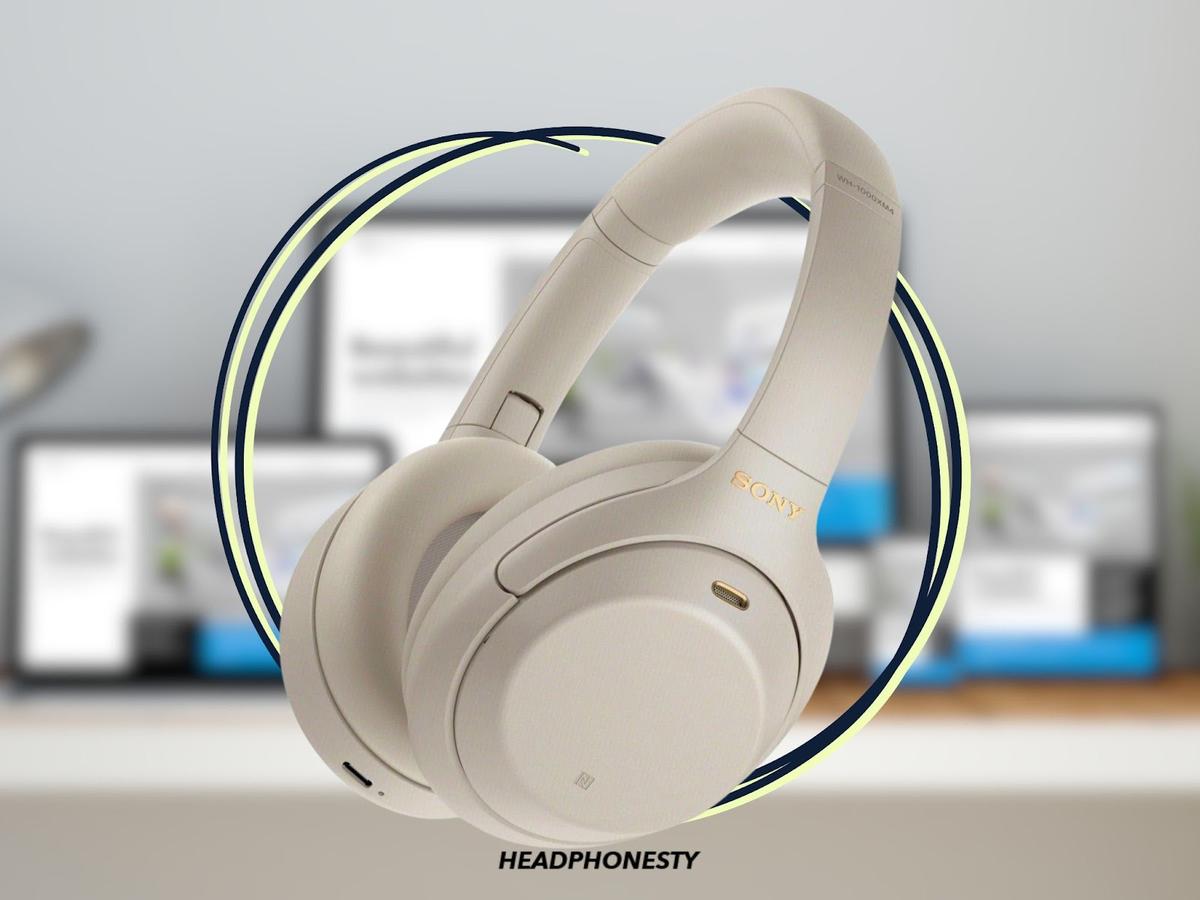
Credit: www.headphonesty.com

Credit: smart.dhgate.com
Frequently Asked Questions
How Do I Pair Sony Bluetooth Headphones With My Phone?
To pair, turn on your Sony headphones and enable Bluetooth on your phone. Select your headphone model from the Bluetooth list. Confirm pairing if prompted. Your device will connect automatically in the future.
Why Won’t My Sony Headphones Connect Via Bluetooth?
Check if headphones are in pairing mode. Ensure Bluetooth is enabled on your device. Restart both devices and try again. Also, clear previous pairings if the connection fails.
Can I Connect Sony Bluetooth Headphones To Multiple Devices?
Yes, some Sony headphones support multi-device pairing. Check your headphone model’s manual. Pair with each device separately. Switch between devices through the headphone controls or Bluetooth settings.
How To Reset Sony Bluetooth Headphones For Pairing?
Press and hold the power button and volume up button simultaneously for about 7 seconds. The headphones will reset and enter pairing mode, allowing you to connect to a new device.
Conclusion
Pairing Sony Bluetooth headphones is quick and simple when following these steps. Keep your headphones close to your device, ensure Bluetooth is enabled, and reset if needed. Once connected, enjoy wireless sound for music, calls, or gaming. Sony Bluetooth Headphones YouTube Tutorial


